How to Modify Taxes.
Keeping your tax information up to date helps prevent tax discrepancies at the checkout. Follow these quick steps to modify the tax settings on your product.
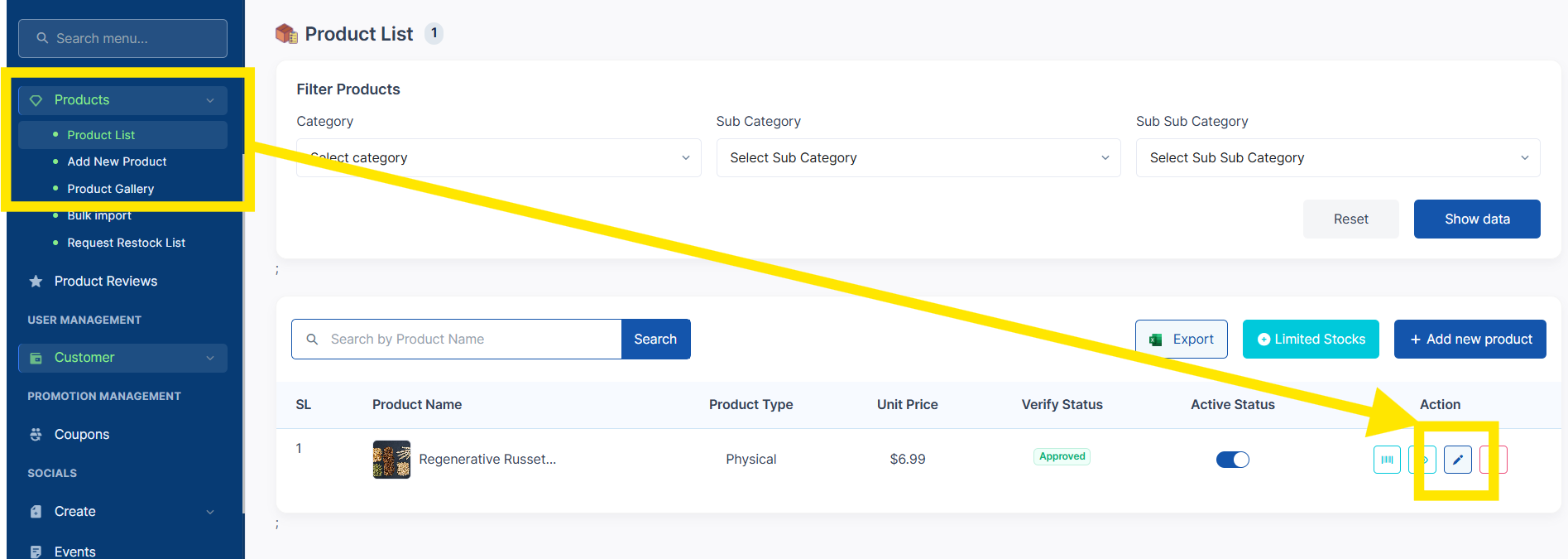
Step 1: Go to Products & Select one of the products
-
On the left-hand panel, scroll down to Products and click Product List to see all your existing items.
-
In the Product Name > Action section, click the ✏️ Edit button next to the product you want to update.
Step 2: Modify your Tax Amount (%)
-
Navigate Product Edit > Advance tab > Other Pricing
NOTE: Tax Amount(%) is set to 0% by default.
-
Tax Amount (%) is the percentage of taxes that should be applied to your product.
- Wholesale products vs. physical (direct to consumer) products may have different. Check with your local jurisdiction or tax advisor if you are unsure.
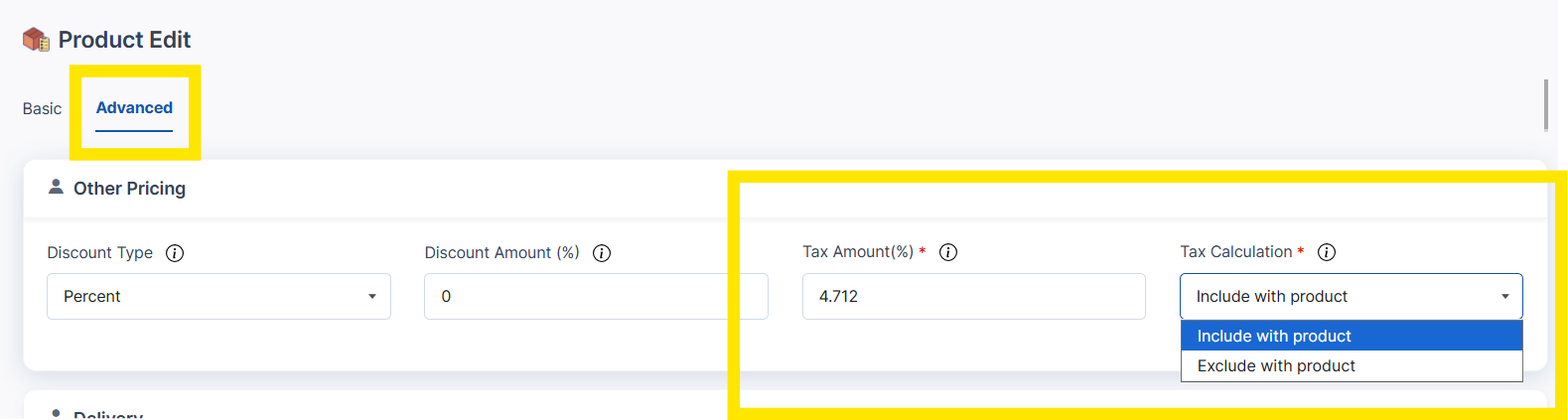
Step 3: Decide to either include or exclude the taxes in your pricing
You have the choice to either include or exclude the tax percentage. This table highlights the calculation that is completed based on your selection.
-
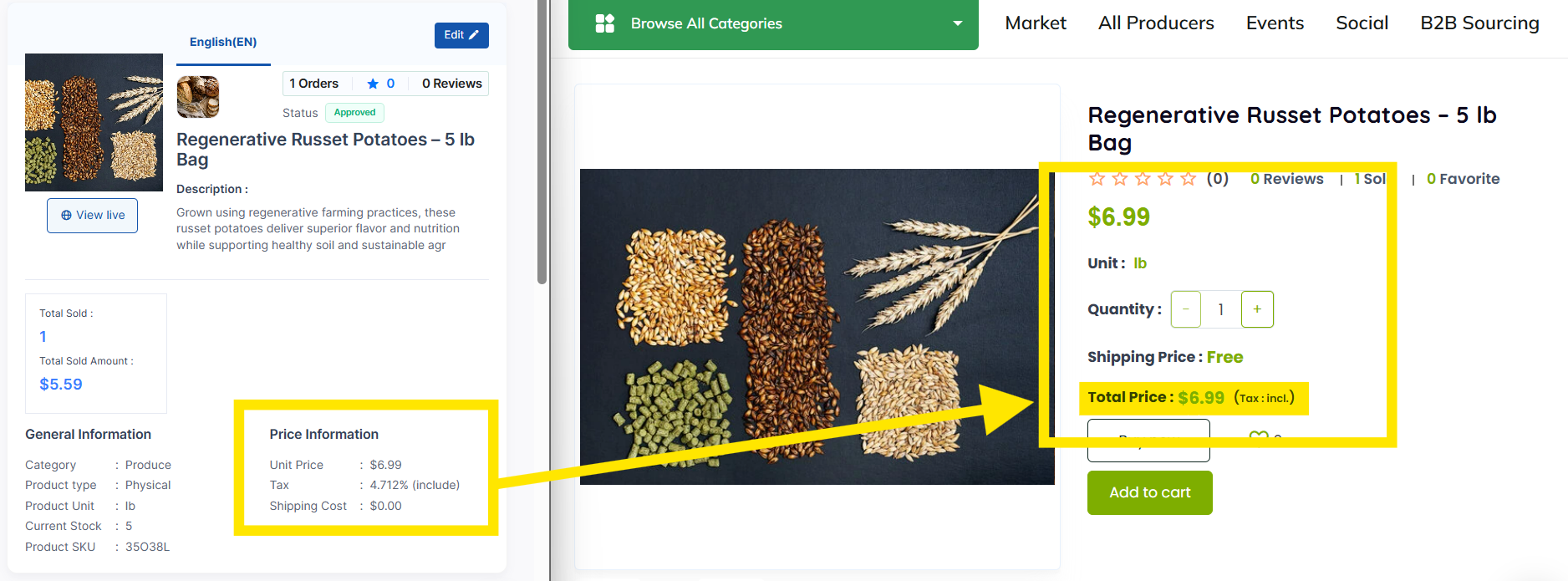
Included with Product the taxes you owe is included in your Unit Price. If your taxes change, you'll need to revisit your Unit Price and update the Tax Amount (%).
-
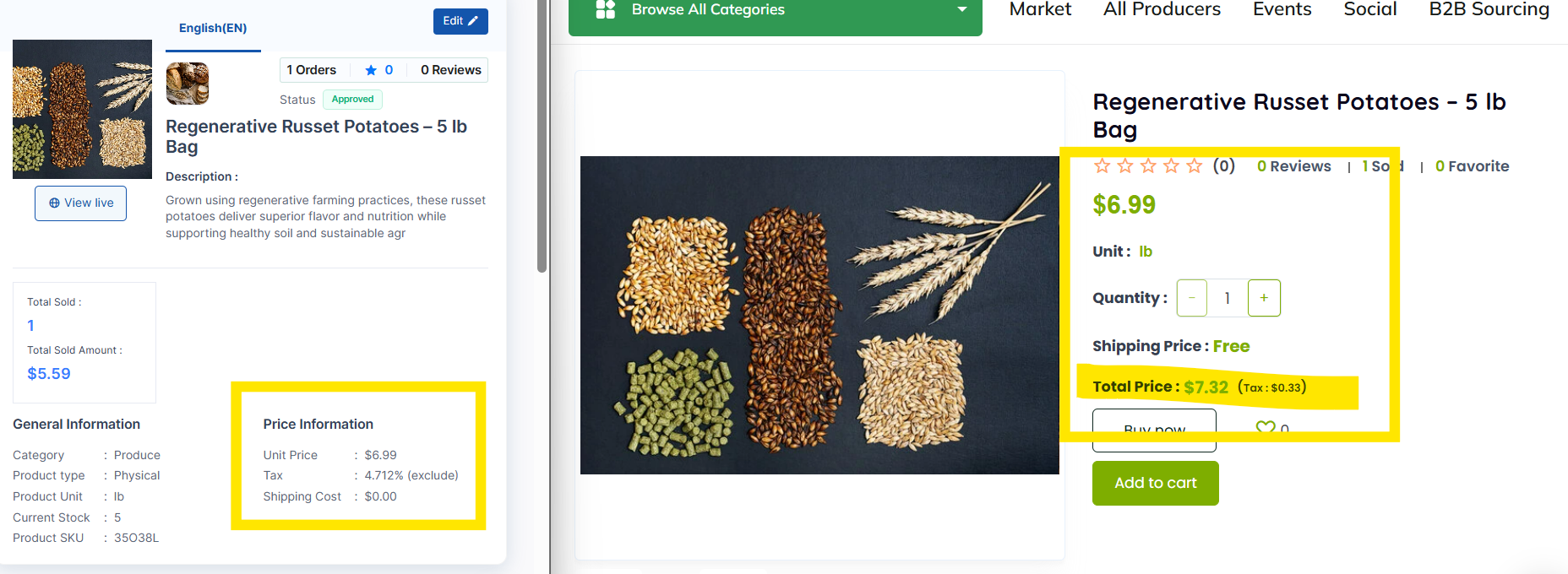
Exclude with Product (recommended) will add the tax to your based price. If your taxes change, you'll simply need to update the Tax Amount (%).
| Include| with product| Exclude| with product
---|---|---|---|---
Unit Price ($)| $ 6.99| Collected| $ 6.99| Revenue After Taxes
Tax Amount(%)| 4.712%| $ (0.33)Tax Amount ($)| 4.712%| $ 0.33 Tax Amount ($)
| $ 6.66| Revenue After Taxes| $ 7.32| Collected
Include with Product
Exclude with Product (recommended)
Step 4: Save changes
-
Review your updates, then click Save to apply them.
-
Your product’s tax settings are now updated!