(POS & B2B Sourcing Orders)
🎯 Purpose
Whether an order is placed online , manually created via POS , or generated from a B2B sourcing request , you can invoice, accept payment, and track fulfillment — all inside your Farm To You producer dashboard.
This ensures every order is billable, recorded, and easy to manage , even for cash or offline transactions.
🔁 Workflow Overview
| Step | Action |
|---|---|
| 🛒 1 | Create Order (via POS or from B2B Sourcing Request) |
| 📄 2 | Invoice is Generated & available for download |
| 💳 3 | Customer Pays via Card or Offline |
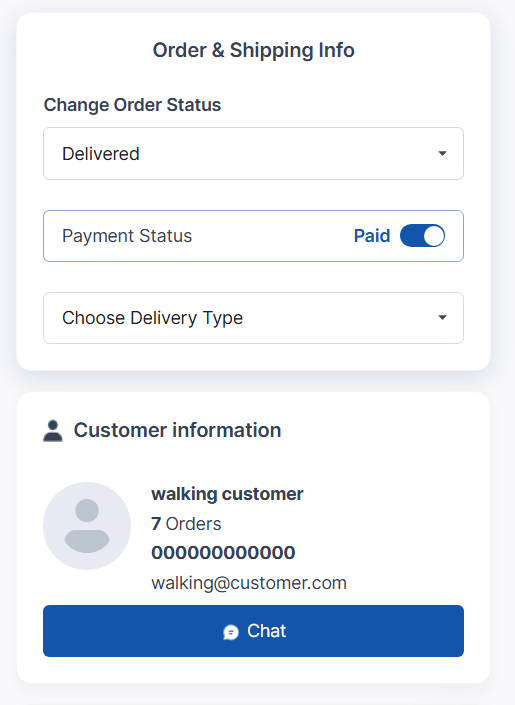
| ✅ 4 | (If manual payment) Mark as Paid |
| 🚚 5 | Fulfill & Track Order Status |
👀 Once created, all orders appear in the buyer’s dashboard with Pay by Card or Offline options — regardless of whether it's a POS or B2B order.
🛒 Method 1: Create & Invoice an Order Using POS
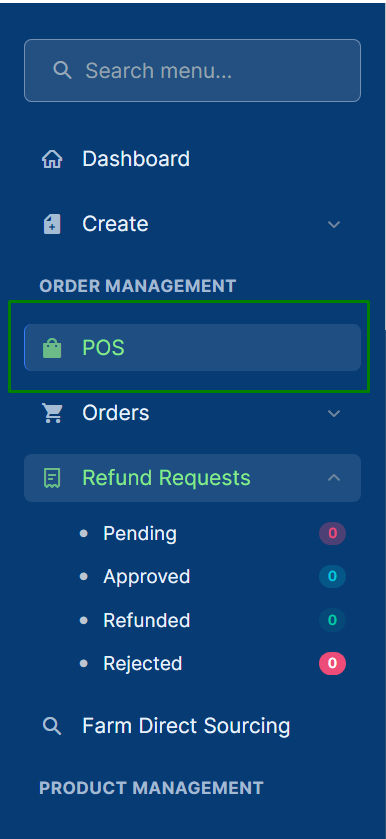
1️⃣ Access the POS Panel
● Go to POS
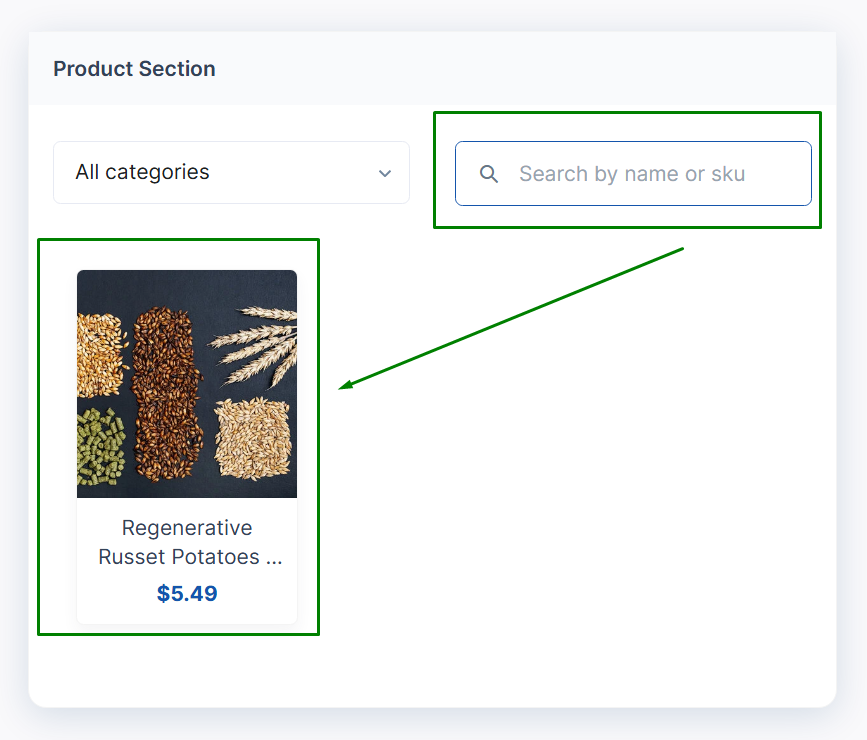
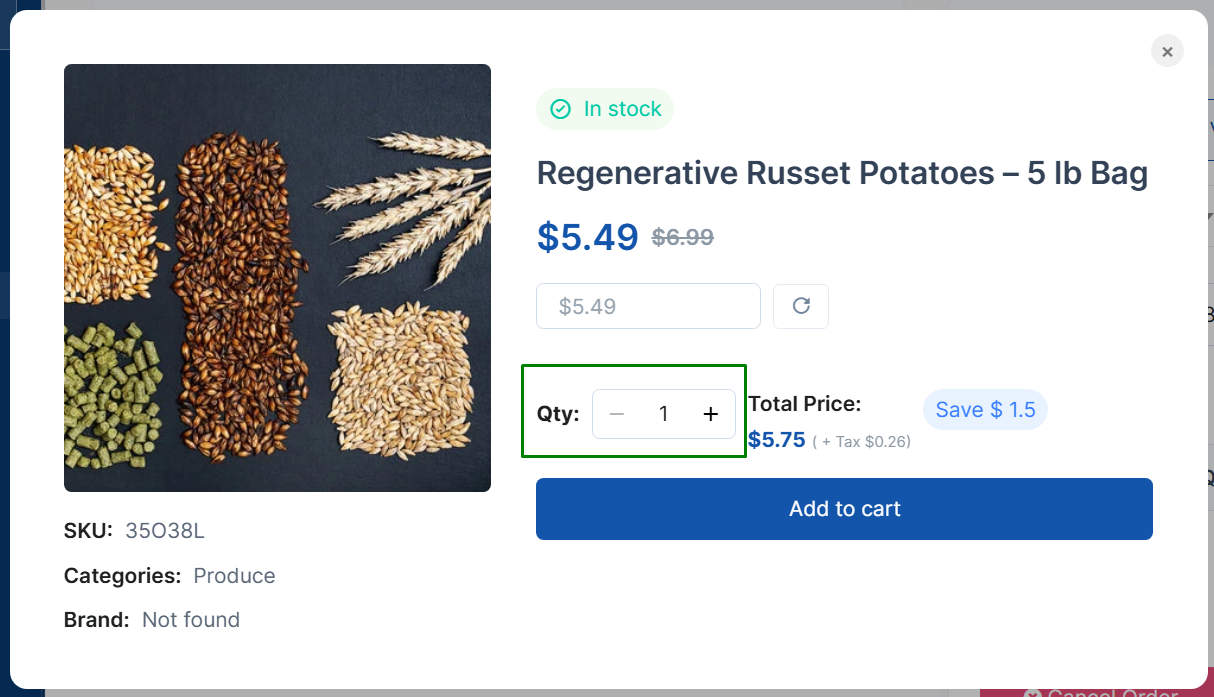
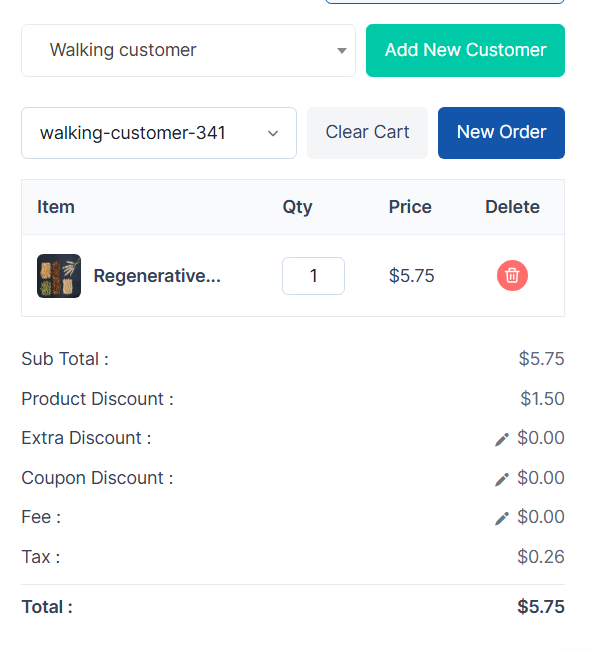
2️⃣ Add Products to Cart
● Browse or search for a product
● Click on product → Set Quantity → Add to Cart
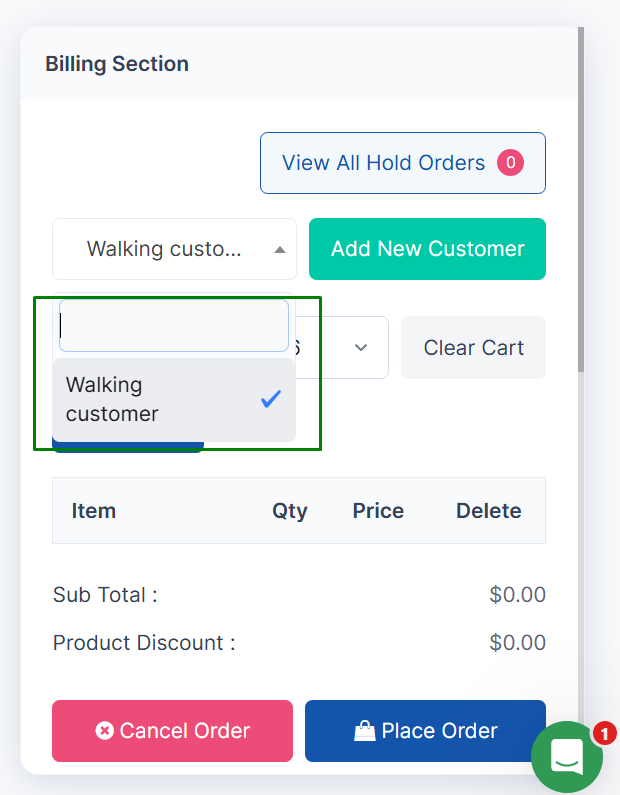
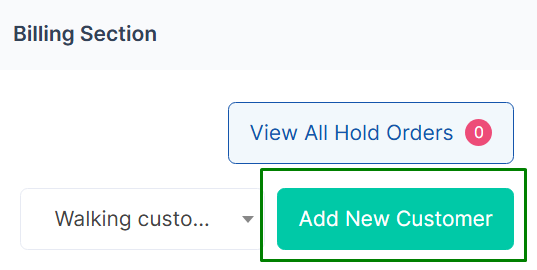
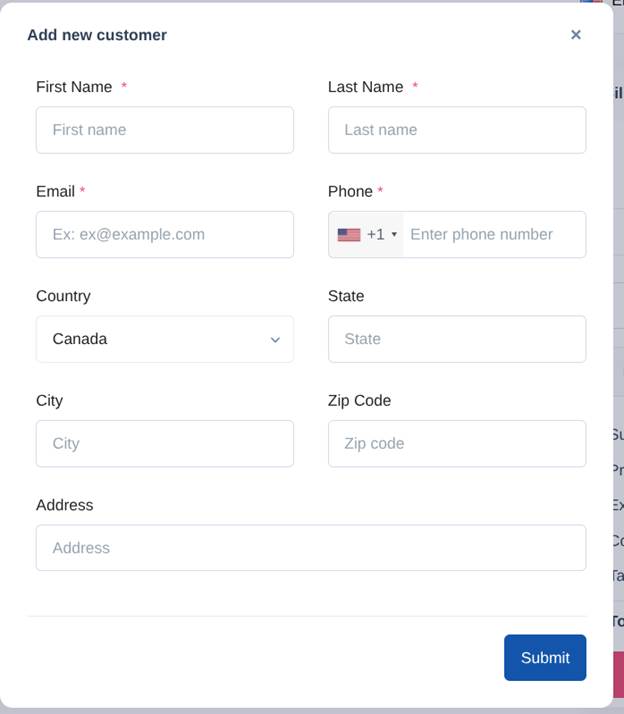
3️⃣ Assign or Create Customer
● Select a customer from the dropdown
● OR click Create New Customer to add one manually
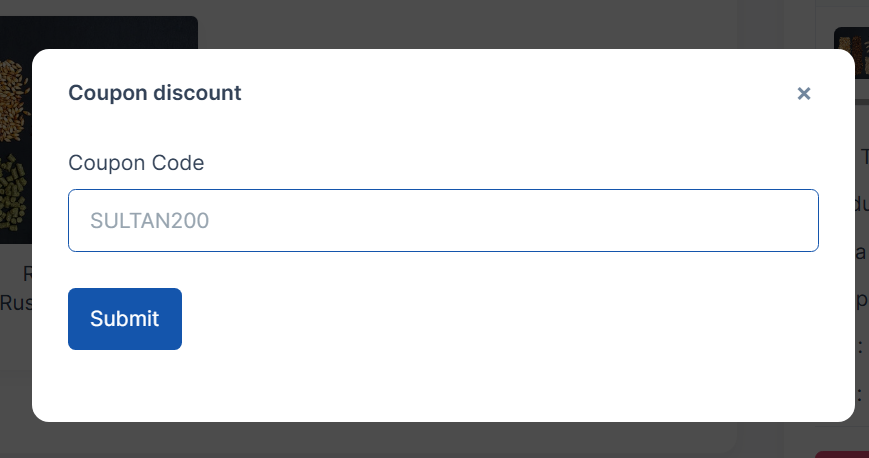
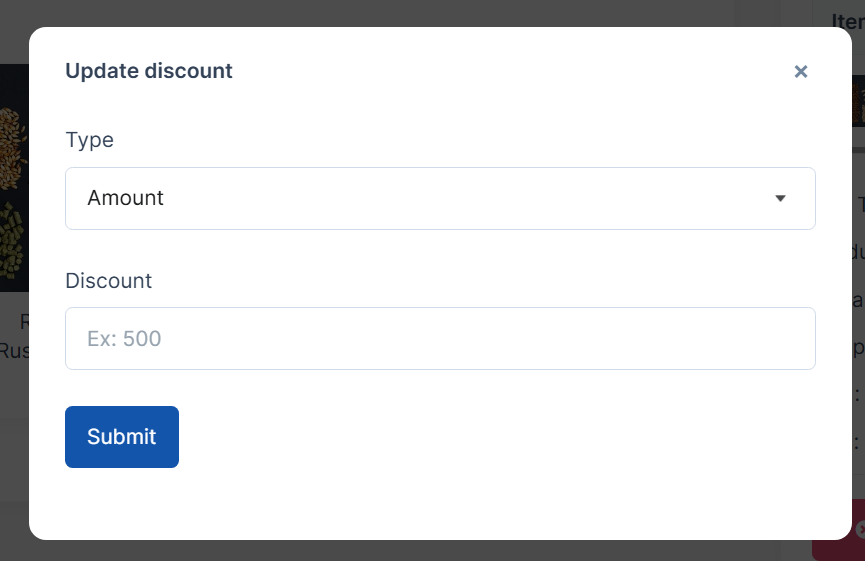
4️⃣ Apply Optional Discounts (If Needed)
● Apply product discount , extra fee adjustment , or coupon code
5️⃣ Save as Pending / Unpaid Order
● Check ✅ Pending Order
● Set Payment Amount = $0.00
● Click Place Order
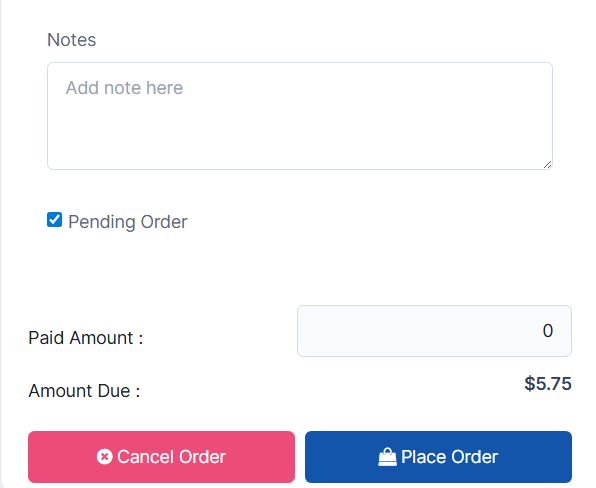
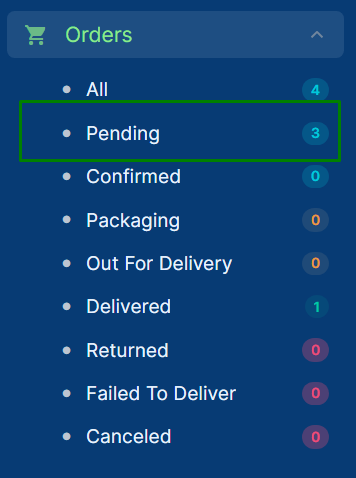
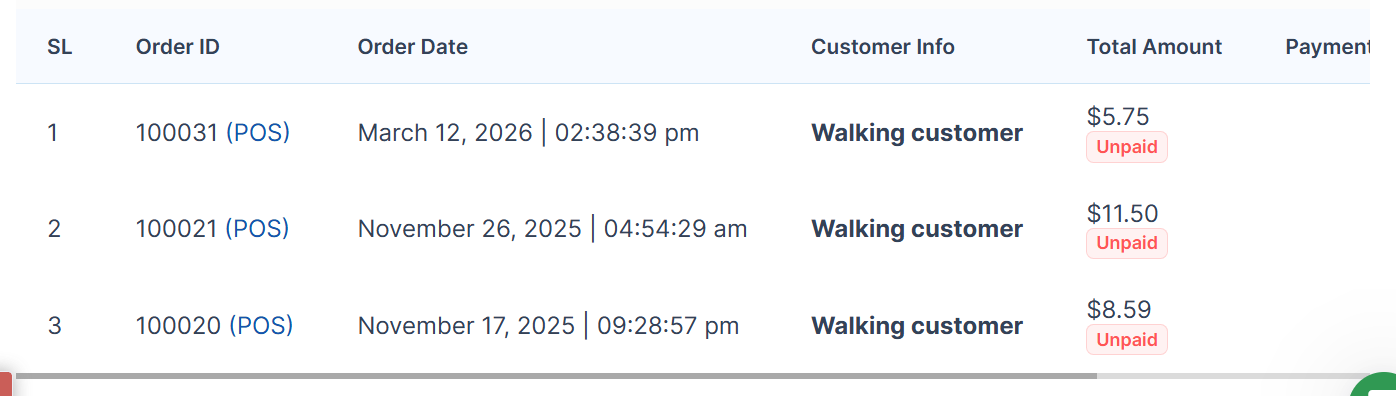
✅ The order now appears in Orders with status Pending / Unpaid.
● This instantly creates an order with Pay Now options visible to the buyer.
📎 Download & Send Invoice
-
Go toOrders
-
Find the Pending / Unpaid order
-
Click the Download Invoice icon
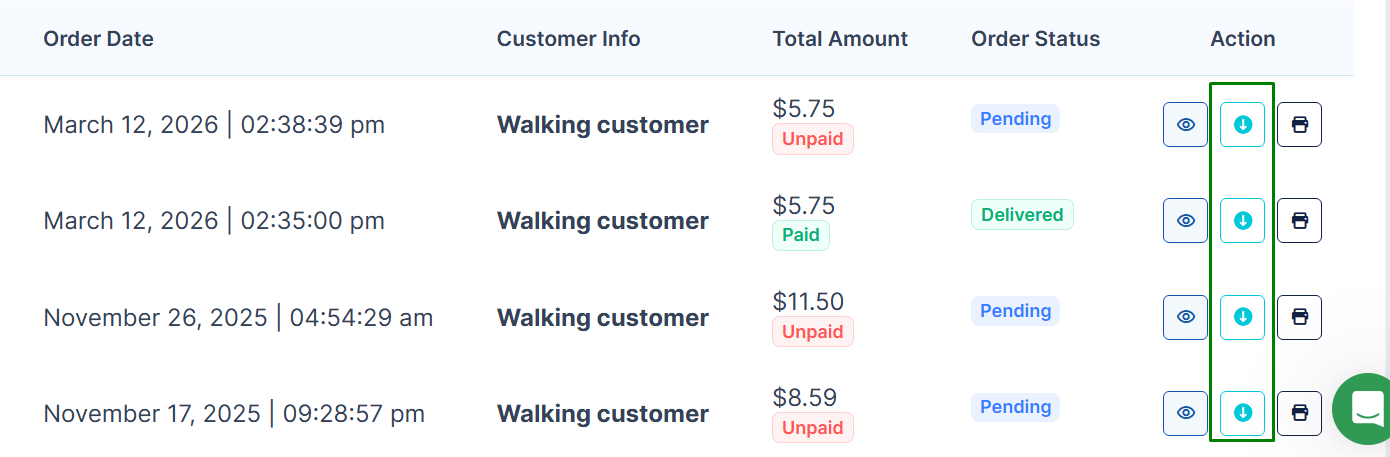
📨 Send this PDF invoice manually via email, WhatsApp, SMS, or message.
🏷 Method 2: Generate Invoice from B2B Sourcing (Wholesale RFQ)
This applies when a buyer submits a wholesale request (RFQ) and you respond with a quote that gets approved.
1️⃣ Go to B2B Sourcing → My Responses
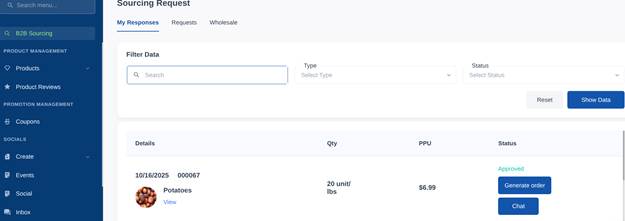
2️⃣ Click Generate Order
● This instantly creates an order with Pay Now / Offline Payment options visible to the buyer.

🟢 Same payment experience as POS orders — now visible in their Orders tab.
💳 Payment Options (For POS or B2B Orders)
| Payment Method | Buyer Experience |
|---|---|
| 💳 Pay by Card (Online) | Buyer logs in → Clicks Pay Now → Pays securely by credit card → Status auto-updates to Paid |
| 💼 Offline Payment (Cash, EFT, Bank Transfer, Check) | You download invoice → Send to buyer → Once paid offline, click Mark as Paid (Manual) in your dashboard |
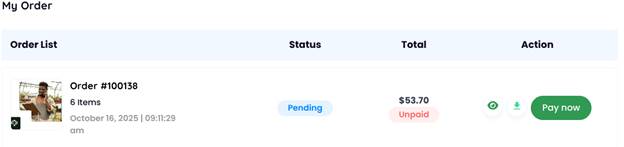

💡 All orders — whether POS or B2B — show the same payment options in the buyer view.
📦 After Payment: Fulfill & Track
Once marked as Paid :
● ✅ Order status updates to Ready for Fulfillment
● 🚚 You can update delivery/shipping stage from dashboard
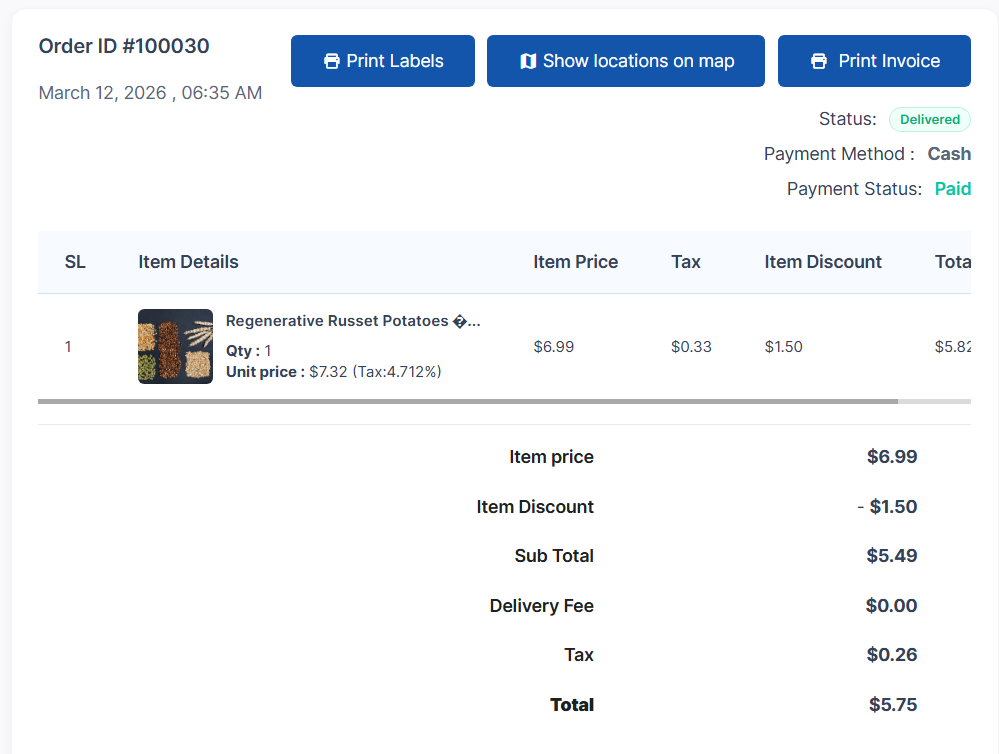
● 📄 You can print, resend, or download the invoice anytime
● 👁 Both producer and buyer can track progress in Order History
🎯 Best Practices for Producers
✔ Always set unpaid POS orders to $0.00 so they become invoice-based
✔ Download and send invoices quickly for offline buyers
✔ Use Mark as Paid to close out manual/EFT transactions
✔ Keep all orders in dashboard to maintain clean records & financial tracking